Server Administration · LESSON 2 / 7
Edit a server configuration
Change a setting and send it to your server.
Before you start
- A PimpMyRust account and a server you are authorized to manage.
- SFTP with read and write access to the plugin files; RCON for reloading when required.
Video and chapters
On screen
Open the server configuration
Open Configure from Backpacks on the selected server.
Descriptive transcript and files
This video is silent. The transcript describes actions and visual results; captions repeat the on-screen instructions.
- 0:00
Open the right plugin — From the loaded plugin, open Configure. The selected server remains your target.
- 0:04
Read the server configuration — The server and Backpacks 3.17.8 are recognised. The displayed values came from the server.
- 0:09
Keep a starting copy — Export the JSON before changing the server settings.
- 0:13
Choose when to send — Open Options to check this plugin’s send and reload settings.
- 0:16
Separate sending and reloading — Automatic sending is off. Choose Manual under Reloading before continuing.
- 0:22
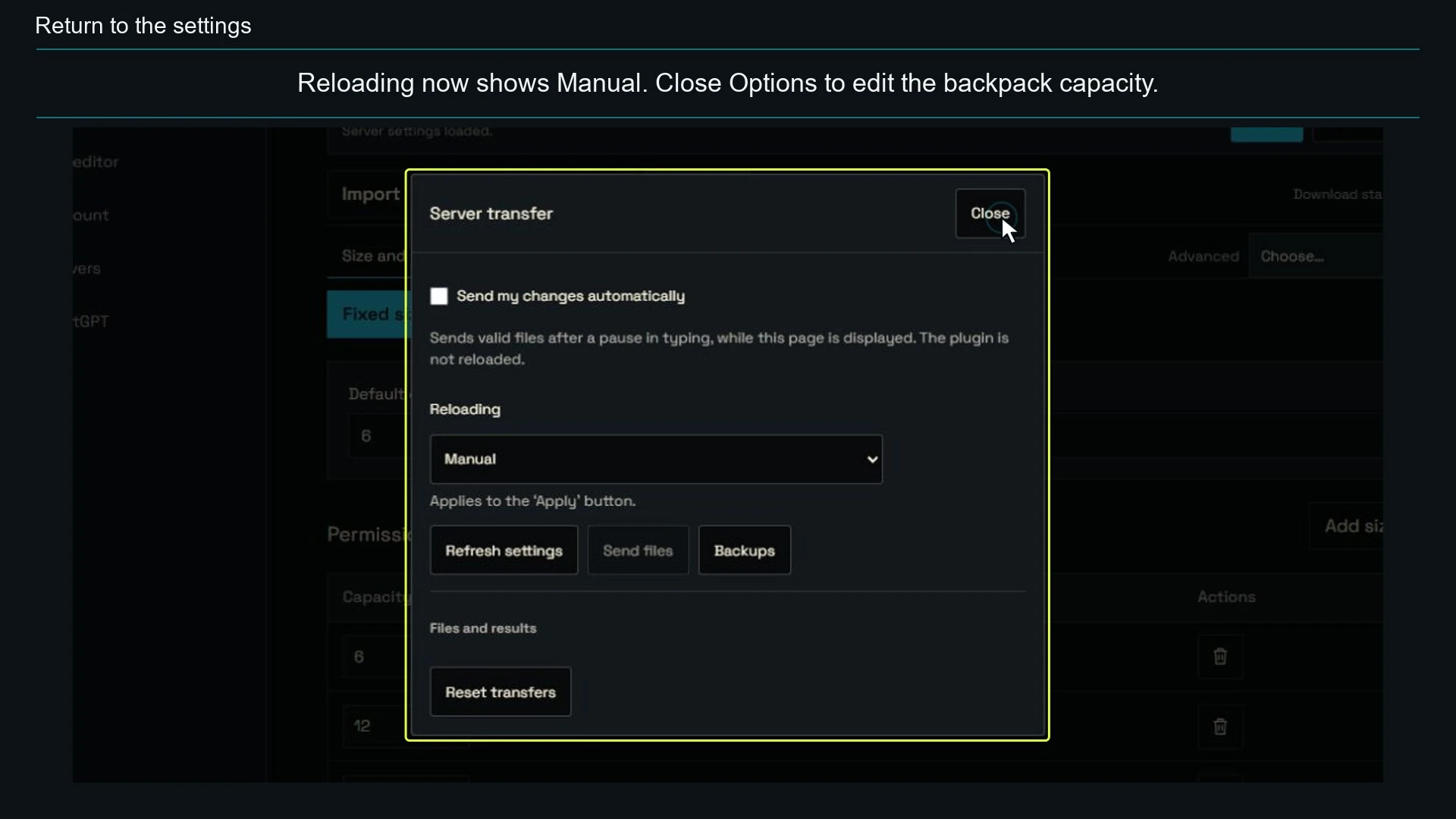
Return to the settings — Reloading now shows Manual. Close Options to edit the backpack capacity.
- 0:26
Edit the default capacity — Default capacity is 6. We will set it to 12; permission capacities stay unchanged.
- 0:30
Check the new value — The form now shows 12. No file has been sent yet.
- 0:35
Send the change — Apply prepares the files for the selected server.
- 0:39
Confirm the transfer — Replaced files will be backed up. The plugin will not be reloaded at this step.
- 0:45
The file has been sent — The transfer is complete. Reloading is still required, as the result indicates.
- 0:51
Reload the plugin — Open Commands to access actions for the loaded plugin.
- 0:55
Restart Backpacks — Restart reloads Backpacks only; it does not restart the Rust server.
- 0:59
Confirm the reload — Confirm: Backpacks will read its configuration and restart.
- 1:04
Reload confirmed — Plugin restarted confirms the reload. We will now check the configuration again.
- 1:09
Check the result — Return to Configuration to check the saved value.
- 1:12
Check the server values — In Options, Refresh settings reads the server file again.
- 1:15
Read the current file — Refresh settings reads the remote files; it does not send them.
- 1:19
Confirm reading the files — Reading replaces the form values; no file is sent.
- 1:24
Value confirmed on the server — After reading the file, Default capacity is 12. Permission capacities are unchanged.
Follow the steps
- Open the plugin configurator for the installed channel and version. In Import → From my server, select the server and files, then confirm loading them into your copy.
- Download a baseline copy. Change one setting and fix any reported errors. In Languages or data catalogues, also check the selected language and file.
- Choose Send, then the target server and files. If the panel offers Check files, use it before reviewing the final list and confirming Send these files. Linked windows may add files required for delivery.
- Check the reload choice before confirming. Read the file results separately from the plugin results. Without RCON, reload the plugin from your host’s panel if needed.
- To continue later, use Save. My projects keeps an editable copy; saving does not send anything to the server. For manual installation, use Download.
Visual reference