Observe without being seen — Vanish
- Cost
- Free on uMod
- Framework
- Oxide
- Dependencies
- No additional plugin
- First command
/vanishin chat
Use Vanish when a moderator needs to watch a player without appearing beside them. /vanish switches invisibility on; run it again to become visible.
- Grant
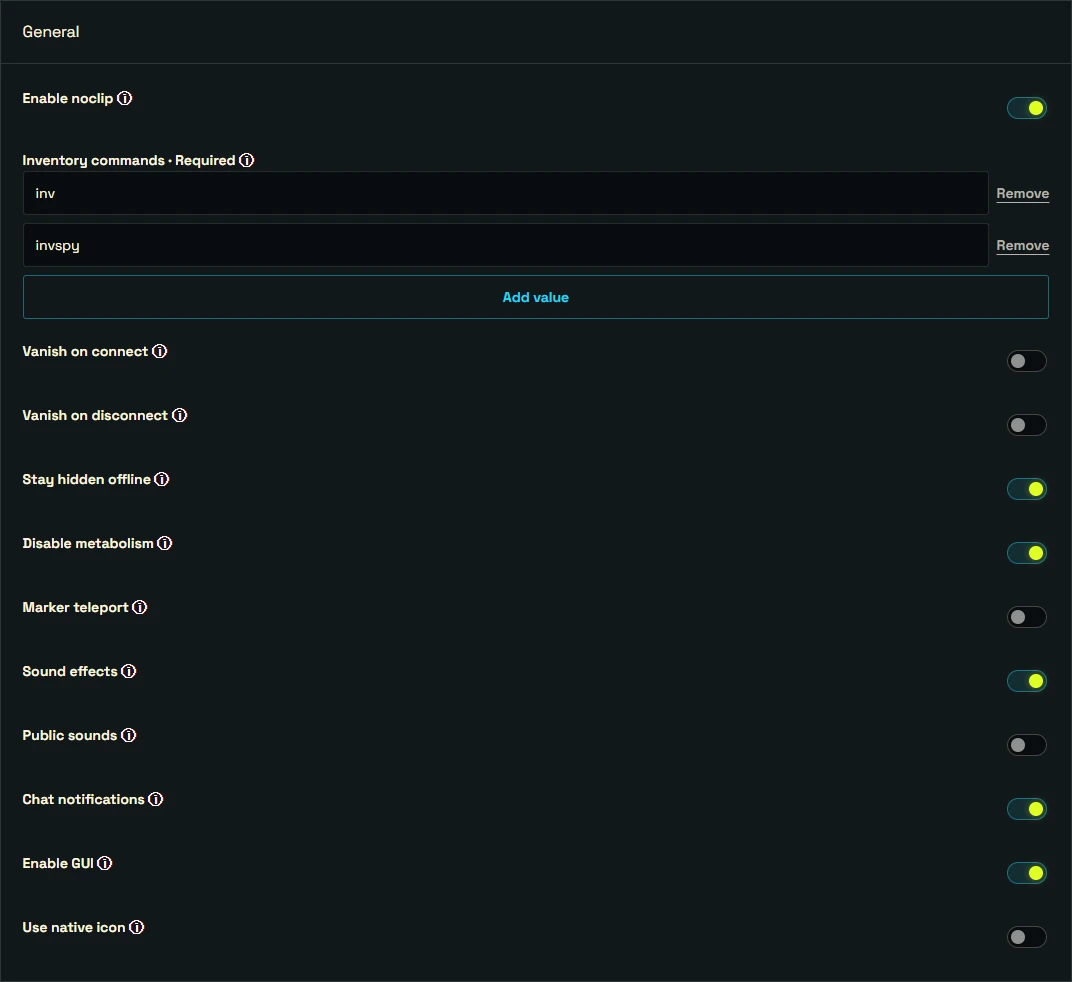
vanish.allowto the moderators who need it; the permissions example below shows how. - For manual use, leave automatic vanish disabled. Keep public sound effects off if you do not want the effect to announce your presence.
Important: Do not grant vanish.permanent for this workflow: it prevents the normal return-to-visible toggle.
Find players and entities — Admin Radar
- Cost
- Free on uMod
- Framework
- Oxide
- Dependencies
- DiscordMessages is optional
- First command
/radarin chat
Admin Radar draws player and entity information on a staff member’s screen. Use it to locate a reported player or inspect a nearby situation, rather than searching the map blindly.
- Use
/radarto switch the display on or off, and/radar helpto see the available filters. - Begin with the player display. Set drawing distances to cover your investigation rather than enabling every entity type across the map.
Important: Reserve access for staff. adminradar.allowed can temporarily give the user Rust’s admin flag to draw the radar; also check the configured auth-level and Steam64 restrictions.
Remove buildings and deployables — Remover Tool
- Cost
- Free on uMod
- Framework
- Oxide
- Dependencies
- None for basic removal; ImageLibrary for UI images
- First command
/remove helpin chat
Choose Remover Tool to let players undo permitted construction or to let staff clean up a site. It can charge for removal and refund materials; the normal player mode and unrestricted admin modes are separate.
- Give players only
removertool.normalif they should use normal removal. Test ownership, price and refund settings on a disposable structure before opening access. - Run
/removeto toggle the tool. If you need entity-specific settings, first import the configuration generated by your server: those lists are filled after the plugin starts.
Important: Do not give players removertool.admin, removertool.all, removertool.structure or removertool.external. These modes can delete entities beyond the normal ownership rules; removal is not undoable.
Set permitted raid hours — Raid Time Protection
- Cost
- Paid on Codefling
- Framework
- Oxide or Carbon
- Dependencies
- Zone Manager is optional for zone exclusions
- First command
/raid_datein chat; no permission needed
This PimpMyRust plugin fits servers where raids are allowed only at certain times. Set a post-wipe protection period and each day’s raid window; players can check the next change with /raid_date.
- For a Friday 22:00–Saturday 04:00 window, set Friday’s start to
22:00and its duration to360minutes. - Set the UTC offset to match the schedule you announce. It is fixed: adjust it yourself if you follow daylight-saving time.
Important: The plugin does not protect every possible damage source or entity. Read its damage rules and check your server’s raid scenarios before advertising complete raid protection.
Translate plugin messages — AI Translation Free
- Cost
- Free plugin; OpenAI API usage is paid separately
- Framework
- Oxide or Carbon
- Requirements
- Your OpenAI API key, credit and an English plugin language file
- Command location
- Server console or RCON
Use AI Translation Free to prepare a plugin’s messages in another language without translating each JSON value yourself. One command translates one installed plugin’s English language file into one target language. It does not translate player chat.
- Install
AITranslation.cs, enter your key inOpenAITokenand reload the plugin. Keep the key private and set request limits before use. - For the example below, install Vanish first and check that
oxide/lang/en/Vanish.jsonexists. ReplaceVanishwith your plugin name andfrwith the target language code.
Important: Run Free or Pro, not both together.
aitfree.translateplugin Vanish frExpected resultAfter a successful request, review oxide/lang/fr/Vanish.json before using it. Running the command uses paid OpenAI API credit.
Install the chosen plugin and edit its settings
On Oxide, a plugin is a .cs file in oxide/plugins/. Here is the short installation path; use the linked plugin guide for any additional requirements.
- Download the plugin from its author’s page above. Upload its
.csfile tooxide/plugins/and check the server console for a successful load. - Download the generated JSON from
oxide/config/and keep a backup. Open the matching configurator, choose your installed version, then Import that JSON. - Change the settings and Export the result. Replace the corresponding server configuration and reload the plugin; for Vanish, the server-console command is
oxide.reload Vanish.
Give a moderator access: Vanish example
After Vanish has loaded, run the commands below in the server console. Replace <Steam64ID> with the moderator’s 17-digit Steam ID: users in that console lists IDs for connected players. This creates an observers group and grants only the invisibility toggle.
oxide.group add observers
oxide.grant group observers vanish.allow
oxide.usergroup add <Steam64ID> observers
oxide.show user <Steam64ID>Expected resultThe moderator can now use /vanish in chat. Check both invisible and visible states with another player nearby.
Remove that access when it is no longer needed
This is a separate action, not part of installation. Run it when the moderator leaves the role or after a temporary test.
oxide.usergroup remove <Steam64ID> observers
oxide.show user <Steam64ID>Expected resultCheck that /vanish is denied after reconnecting. If it still works, look for vanish.allow granted directly to the user or through another group.