ChatGPT · LESSON 1 / 6
Connect PimpMyRust to ChatGPT
Link your accounts and choose which servers ChatGPT can access.
Before you start
- A PimpMyRust account.
- ChatGPT access allowing a custom MCP server with OAuth under your workspace rules.
Video and chapters
0:22 · Silent video
On screen
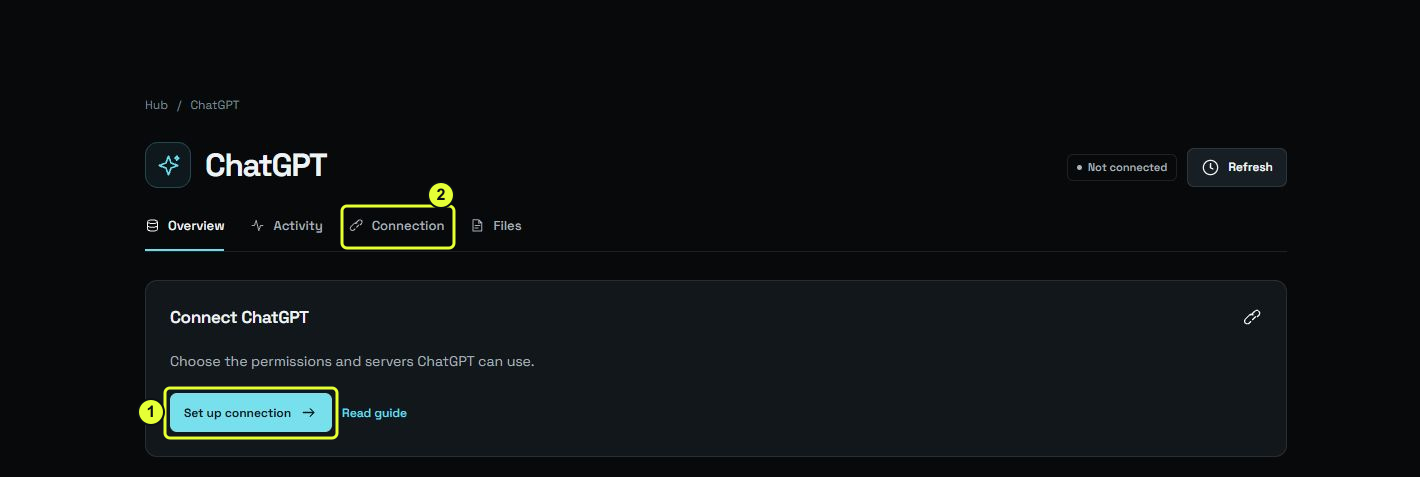
Open connection instructions
In the Hub, open Set up connection to find the connection instructions.
Descriptive transcript and files
This video is silent. The transcript describes actions and visual results; captions repeat the on-screen instructions.
- 0:00
Open connection instructions — In the Hub, open Set up connection to find the connection instructions.
- 0:04
Choose permissions — When authorizing the connection from ChatGPT, choose only the access you need.
- 0:12
Choose servers — Choose each server separately. A new server will not be added automatically.
- 0:18
Find connections — Connection lists authorized connections.
Follow the steps
- In the Hub, open ChatGPT → Connection. Copy the MCP URL and client settings shown for your connection.
- In ChatGPT on the web, open Plugins and add a custom MCP server. Use the PimpMyRust address and OAuth with the settings shown in the Hub. The official instructions linked from this guide describe the available ChatGPT setup flow.
- Install the resulting plugin in ChatGPT, then select it in the conversation with @. When linking your account, choose the required permissions and servers on PimpMyRust, then authorize them.
Visual reference